A monitor arm holds your screen above the desk, letting you adjust height, distance and angle more freely than most built-in stands allow. Arms can also free up desk space and make standing desk setups easier. But not every arm fits every monitor or desk, so checking compatibility first is essential.
This guide covers what to look for in a monitor arm and how to install one safely. Always follow the manufacturer’s instructions and weight limits.
Why Use a Monitor Arm?
- More adjustment: Height, depth, tilt, swivel and rotation
- Free desk space: The monitor floats above the surface
- Easier sit-stand transitions with adjustable arms
- Better positioning for comfort. See how to set up a monitor.
- Cleaner cable routing with built-in channels
Check VESA Compatibility
Most monitor arms attach using the VESA mounting standard, a pattern of screw holes on the back of the monitor. Common patterns are 75×75 mm and 100×100 mm.
- Check your monitor’s specifications for VESA support and pattern
- Look for four screw holes on the back
- Some monitors lack VESA mounts. Adapters exist for some models, but check compatibility.
- Curved and ultrawide monitors may need arms designed for them
Weight and Size Ratings
Every arm has a weight range and maximum screen size.
- Check your monitor’s weight without the stand
- Choose an arm rated for that weight
- Gas spring arms have minimum and maximum weights. Monitors that are too light may cause the arm to drift upward, while too heavy may cause sagging.
Heavy ultrawide monitors need heavy-duty arms.
Types of Monitor Arms
Gas Spring Arms
Gas spring arms let you move the monitor easily and hold it in place. Tension can be adjusted to match monitor weight. They are popular for frequent adjustments.
Mechanical Spring Arms
Similar to gas spring arms but use mechanical springs. Some users find them durable and smooth.
Fixed or Pole-Mounted Arms
Pole mounts attach monitors to a vertical pole. Adjustments may require tools, but they can be less expensive.
Wall-Mounted Arms
Wall arms attach to studs and keep the desk completely clear. Get landlord permission and mount into studs.
Single, Dual and Multi-Monitor Arms
- Single arms hold one monitor
- Dual arms hold two monitors side by side or stacked
- Multi-monitor arms hold three or more
Dual arms on a single pole may limit independent adjustment compared to two separate arms.
Mounting Options
Clamp Mount
Clamps attach to the desk edge. Check:
- Desk thickness range
- Desk edge overhang and space behind the desk
- Desk material strength
Grommet Mount
Grommet mounts go through a hole in the desk. Some desks have pre-drilled grommets.
Desk Material Considerations
- Glass desks are often unsuitable for clamps
- Thin or particle board desks may need reinforcement plates
- Desks with crossbars may interfere with clamp placement
Standing Desk Considerations
Arms add weight to standing desks. Check the desk’s weight capacity, and make sure the arm does not collide with walls or windows when the desk moves. See standing desks under $400.
Cable Management
Many arms have cable channels or clips. Leave enough slack for full movement. See cable management ideas.
Laptop Trays
Some arms offer laptop tray attachments, letting you position a laptop like a monitor.
Installation Tips
- Check compatibility before starting.
- Remove the monitor’s stand.
- Attach the clamp or grommet securely.
- Attach the VESA plate to the monitor with the correct screws.
- Get help lifting heavy monitors.
- Attach the monitor to the arm.
- Adjust tension so the monitor stays in place.
- Route cables.
- Test full movement.
Adjusting Tension
If the monitor drifts upward, reduce tension. If it sags, increase tension. Follow instructions, since some arms must be fully extended when adjusting.
Brands to Compare
Monitor arm brands include Ergotron, Humanscale, Amazon Basics, VIVO, HUANUO, Fully Jarvis and others. Compare weight ratings, warranties and reviews.
Questions to Ask Before Buying
- Does your monitor support VESA mounting?
- What does your monitor weigh?
- Is your desk compatible with clamp or grommet mounting?
- Do you need single or dual arms?
- How often will you adjust your monitor?
- Will the arm work with your standing desk?
Common Monitor Arm Problems
Monitor Sags
Increase tension, tighten joints and check that the monitor is within the weight range.
Monitor Tilts Forward
Tighten the tilt joint. Heavier monitors may need a stronger arm.
Desk Wobble
Arms can increase wobble on lightweight desks. Use a reinforcement plate or move the clamp closer to a leg.
Clamp Slips
Tighten the clamp and check desk thickness compatibility.
Maintenance
Check bolts and joints periodically, retighten as needed and adjust tension if you change monitors.
Monitor Arm Alternatives
If your monitor lacks VESA support or your desk cannot hold a clamp, consider a monitor riser, adjustable stand or freestanding arm base. Freestanding bases sit on the desk and need no clamp, though they use some surface space.
Choosing Between One Arm and Two
If you have two monitors, two separate single arms often offer more independent adjustment than a single dual arm. However, a dual arm uses one clamp and may look tidier. Consider how often you adjust each monitor and how much desk edge space you have.
Arms for Different Monitor Positions
Some arms let you stack monitors vertically or rotate monitors to portrait orientation, which can be useful for coding, reading documents or editing long pages. Check rotation and stacking support before buying.
Monitor Arms and Webcams
If your webcam sits on top of your monitor, the arm will move it as you adjust the screen. This can be helpful for keeping the camera at eye level. Check that the webcam clip fits your monitor’s thickness when mounted.
Frequently Asked Questions
What is VESA?
A standard mounting pattern for monitors.
Can I use a monitor arm with a glass desk?
Often not. Check with the manufacturer.
Why does my monitor drift up?
The arm tension is too high for the monitor’s weight.
Are monitor arms worth it?
Many people find them useful for space and adjustability.
Do monitor arms work with curved monitors?
Some do. Check weight ratings and compatibility.
The Bottom Line
Before buying a monitor arm, confirm VESA compatibility, monitor weight and desk mounting options. Choose gas spring arms for easy adjustments, follow installation instructions carefully and manage cables for full movement.
Editorial note: Home Desky is independent and reader-supported. This guide is based on research into manufacturer documentation, published specifications and widely accepted best practices; we have not been paid to mention any product. If we add affiliate links in the future, they will be clearly disclosed per our Affiliate Disclosure.
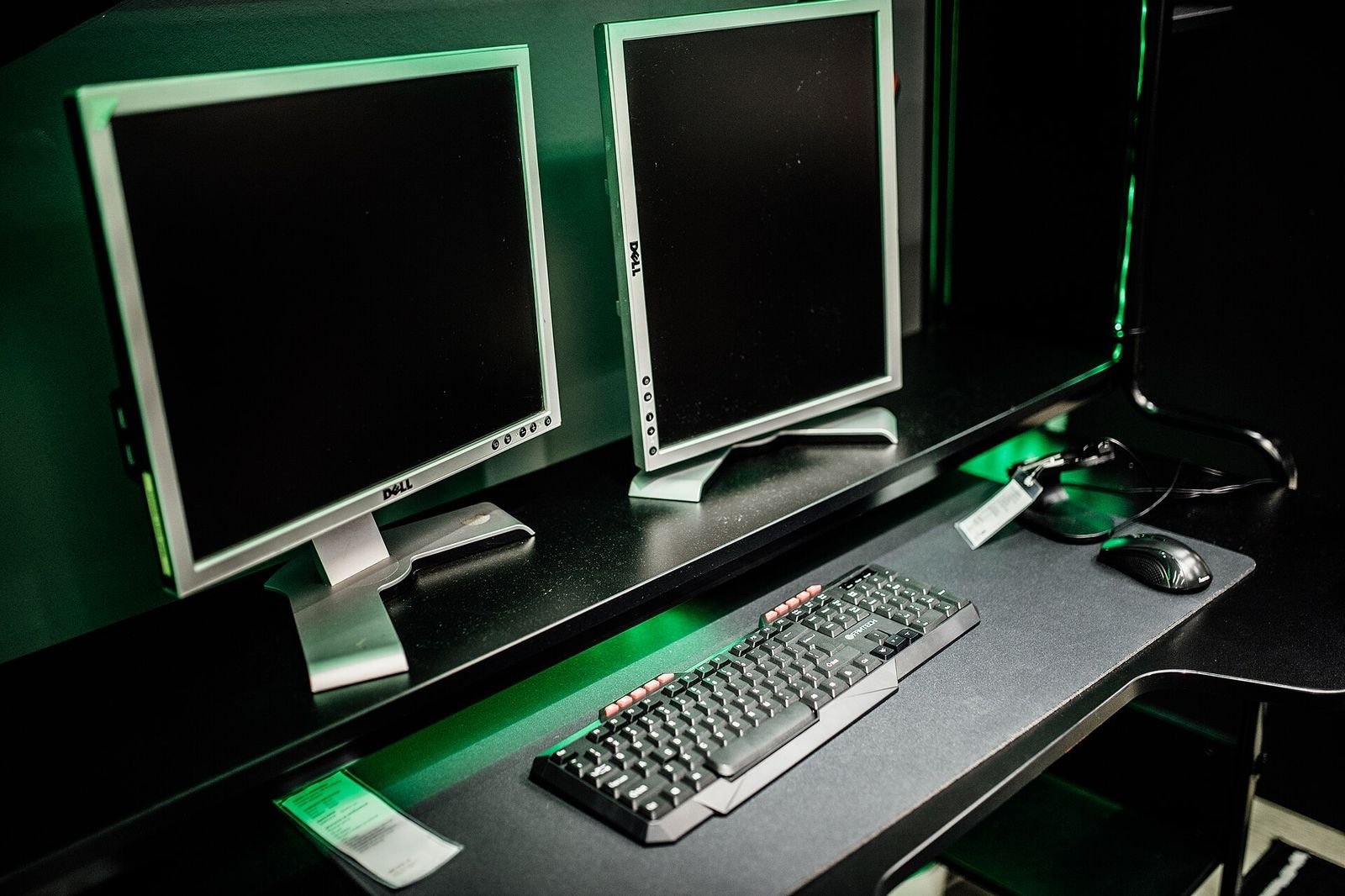
Photo: Dual monitor setup in a gaming room with keyboard and mouse in focus by Shixart1985, CC BY 2.0